The book comes with a CD. All the book materials are in a folder called "Lessons". There will be a folder for each lesson with a name like "Lesson 10". Each chapter is independent and will work even if you haven't done the previous chapters.
There are many ways to work with the CD files but here's how I do it.
I copied the entire CD to a spot on my hard disk.
To start one of the lessons, first start Dreamweaver and then go to the menu and select Site -> New Site.
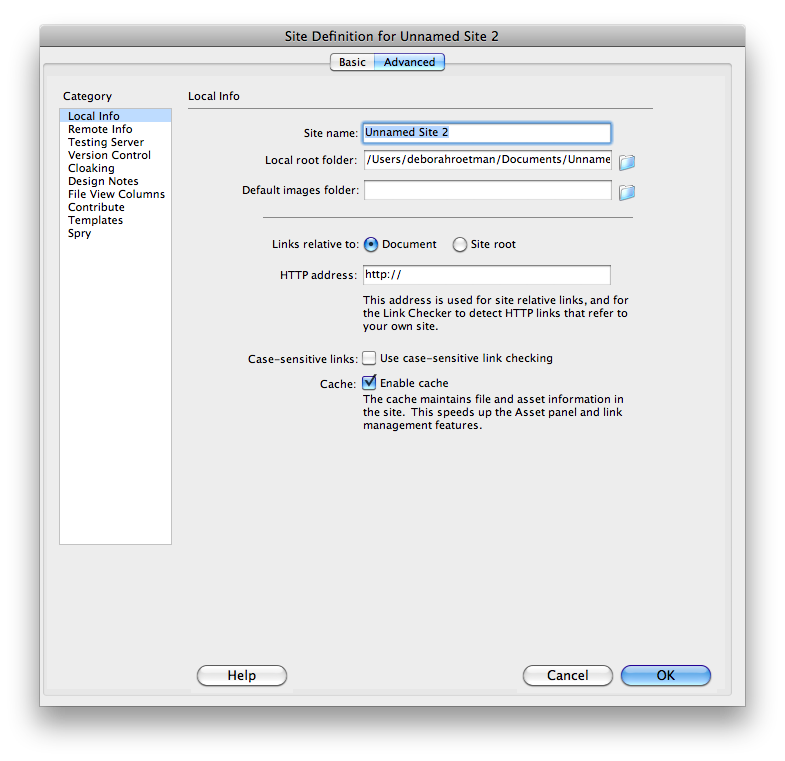
You should see a window that looks like this:
Set "Site Name" to the lesson, for example, "Lesson 10".
Set "Local Root Folder" to the lesson folder on your hard disk. The exact location depends on where you are storing your files. If you are saving them on a USB drive it might be E: and the files might be under /dreamweaver/lessons/lesson 10. You will have to do a little navigation to get yourself to the right place.
If you want to be able to upload files, go to the next step before you close out of the "New Site" panels.
Otherwise, if you don't need to upload, which means, if you are planning to save your site on a USB drive and don't want to upload to a server, then you should be ready to go. Make sure you can see the files you expect to see to do the project, and then click "OK" or "Done" until you get back to the program. You're ready to start work.
If you have a server you can store your files on, now is the time to set this too.
You will need your login information to do this. If you don't have this, then you need to get it. You won't be able to guess and you won't be able to use settings from someone else. In my class I have given this information to everyone at the first day of class.
Let's say the server is "ww.brandx.net". The username is "fred" and the password is "1234".
In Dreamweaver version 4, the server information is saved under "Remove Info".
In Dreamweaver 5.5, select "Server" and then "+" to add a server.
Either way you will see something that looks similar to this:
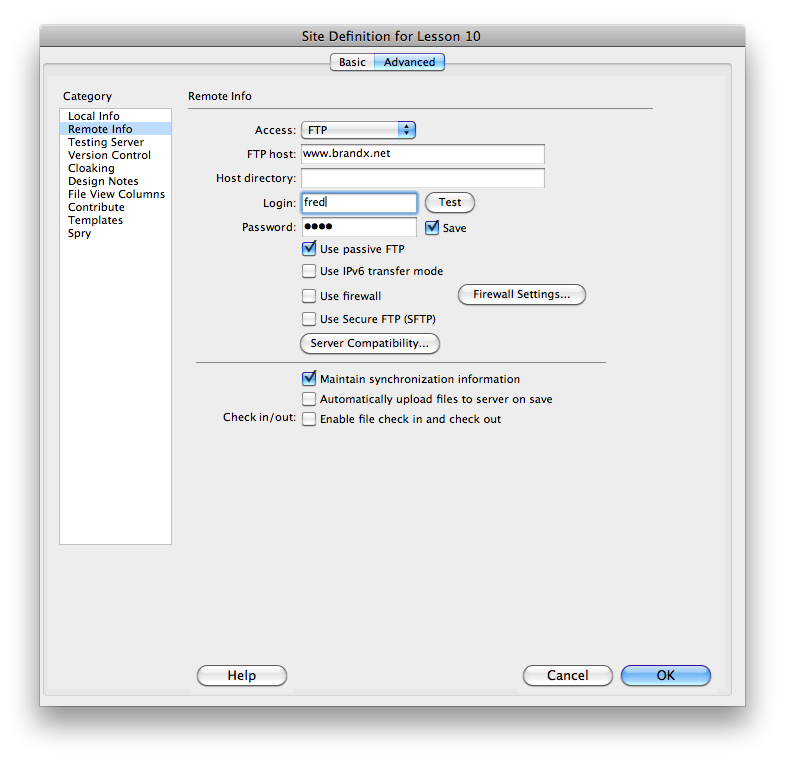
The "Ftp Host" is the name of the server. Enter your login (username) and password.
You don't need to fill in the other blanks unless specificallly instructed to do so.
Click the "Test" button and make sure it works.
If it works, great, click ok, save your site information, you're ready to start work.
If not, double check the username, password, and server name. Note that username and password are case sensitive, which means, Jim and jim are not the same. Be really careful about the spelling. If it still doesn't work, make sure your internet is working, and worst case, go back to the person who gave you the information to make sure that you hvae the username and password correct.
Great, at this point you should be ready to start editing the files from your lesson. If you've done this correctly then your lesson files will appear in the file box at lower right of the screen.
Note: many of the problems that people have with working on examples in the book, are caused by not setting the main folder for your site, to the folder for the lesson. If you have it set someplace else, Dreamweaver will get confused about the locations of the various files and some of the book examples won't work.