Customizing Your Workspace
When Dreamweaver opens you will see the welcome screen. It will allow you to open new or existing files. To get rid of it go to preferences-> general -> Welcome/don't show again
The Design View/Code View/Splite Vite buttons allow you to choose whether you see HTML code or the design area of the program, or a split screen with both.
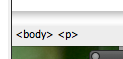
The "status bar" is the area across the bottom of the design area of the screen. ON the let side of this is the "tag selector" which shows the tag or tags that apply to the currently selected item. It's important to know the names here; the instructions frequently refer to them.
Above is a picture of the status bar showing tags for <body> and <p>. Click on them to select. Try it and you will see what I mean.
Panels: "Files" and "Css" are panels that are displayed from the menu. If they are onscreen you can switch from one to the other using the tabs. The little triangles on the left side allow you to minimize or maximize particular panels.
Panels can be turned off in the "Windows" menu. If you don't see one described in the book, that's where to look. Click again to make them go away.
Saving work layout: try Window > Workspace Layout > Save Current. You can reload from the same place. Remember in class our computers restart from scratch each time so the computer may not remember your layout completely unless you save (export) your project and then restore it. See the instructions on how to save your project to a USB drive.
Property Inspector - This is extremely important in Dreamweaver. You will use it all the time. If you click on something in the design screen the poerpties window will show you what options are available for it. For example, if I click on some of the text I'm typing, it will show me the following options:

You can change the font, bold, italic, alignment, and so on. If you were to click on an image you would get a different set of options. You can also set options for tags set in the status bar (see above). This is a little bit confusing but important, so it's worth taking some time to make sure you understand it. In general if you set the options for a tag (pair) such as a color, it will apply to all items contained within that tag. Some tags are multiple nested so sometimes it's a little complicated to figure out what tag is causing a particular behavior.
For example (see p.48) you can set properties for a page and affect everything within it.